
Setup in ABLETON LIVE
In Live you simply load Melody Sauce 2 as a VST3 (or VST2) plugin onto its own MIDI track.
Note: be sure to use the VST version, and not the AU/Audio Unit.
On a MIDI track in Live, select the Melody Sauce 2 VST3 (or VST2) from the VST plugins in the track’s main browser.
The authorisation window will appear. Enter your license/serial key to authorise Melody Sauce 2 (this requires an internet connection). See Authorisation Guide for more details.

Once authorised, the Melody Sauce 2 interface should appear and the plugin is ready for use!
If you are unable to find or load Melody Sauce 2 in Live, please see our guide here:
NB: MIDI ROUTING SETUP
If you don't want to use Melody Sauce's internal sounds you can send Melody Sauce's midi to another software instrument.
Firstly select "MIDI OUT" mode.
On a second Instrument Track loaded with one of your favourite software instruments, find the MIDI From dropdown menu (click the I-O button if this isn’t displayed). Change All Ins to Melody Sauce 2, this will then change the All Channels automatically to Post FX. Then simply change Post FX to Melody Sauce 2 (as seen in the last image):
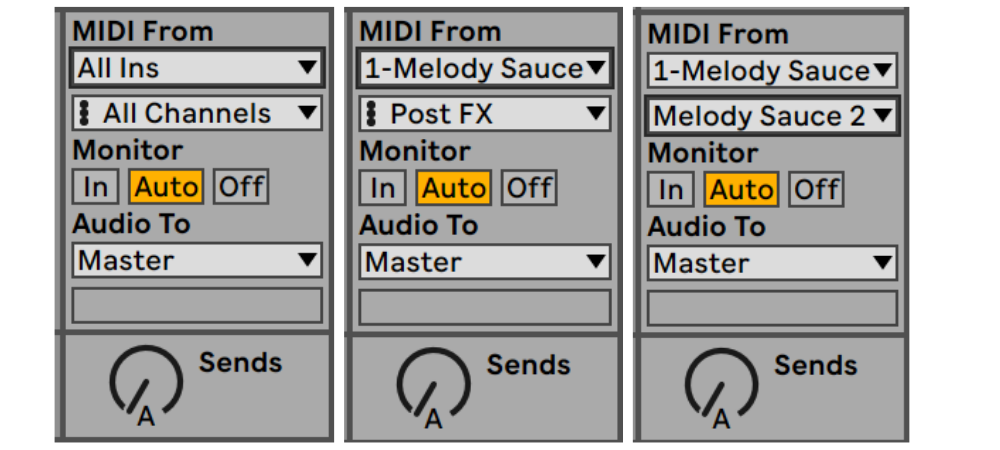
Finally click the arm button to arm the track:

Make sure your project is playing and we recommend looping playback for at least 8 bars so you can hear the whole melody. Note: A fast, long melody would be 8 bars long and a long, slow melody would be 16 bars long.
You are now ready to start generating melodies!
Multiple Tracks:
If you want route Melody Sauce 2’s MIDI output to multiple instrument tracks at the same time, change the MIDI Monitor setting on the receiving instrument tracks from Auto to In.

You will need to set this back to Auto when you no longer want the instrument tracks to receive MIDI from Melody Sauce 2 and instead receive MIDI from MIDI clips within your DAW.
Interface / UI Resolution in Live on Windows
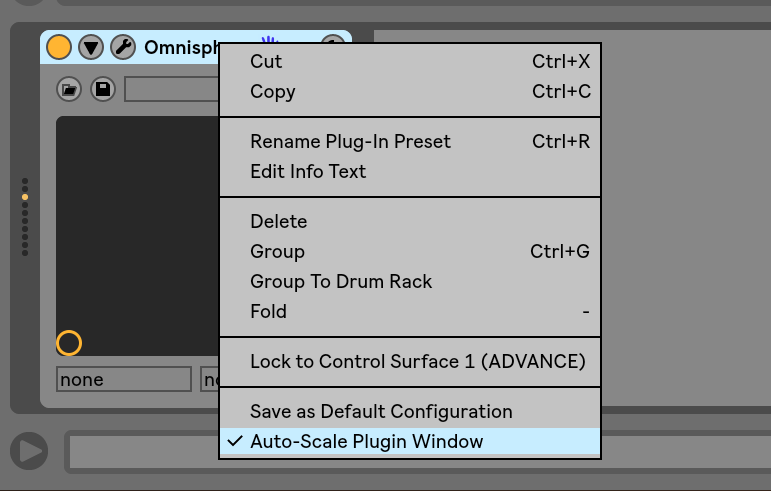
If you have resolution issues in Live on Windows where Melody Sauce 2's main window looks low-resolution and the fonts are hard to read, please make sure Live's Auto-Scaling is not running. You can switch Auto-Scaling off in Live as follows:
1. Right click on the plug-in title bar and deselect "Auto-Scale Plugin Window":
Comments
0 comments
Please sign in to leave a comment.